Notes · October 30, 2026 · 8 min read · Sartaj Aziz Lone
How to Watch Multiple YouTube Videos at Once (and Keep Them in Sync) With Views Sync
Want to watch multiple YouTube videos at once? Views Sync is a free, browser-based multi-view tool that keeps every video locked to one master timeline.
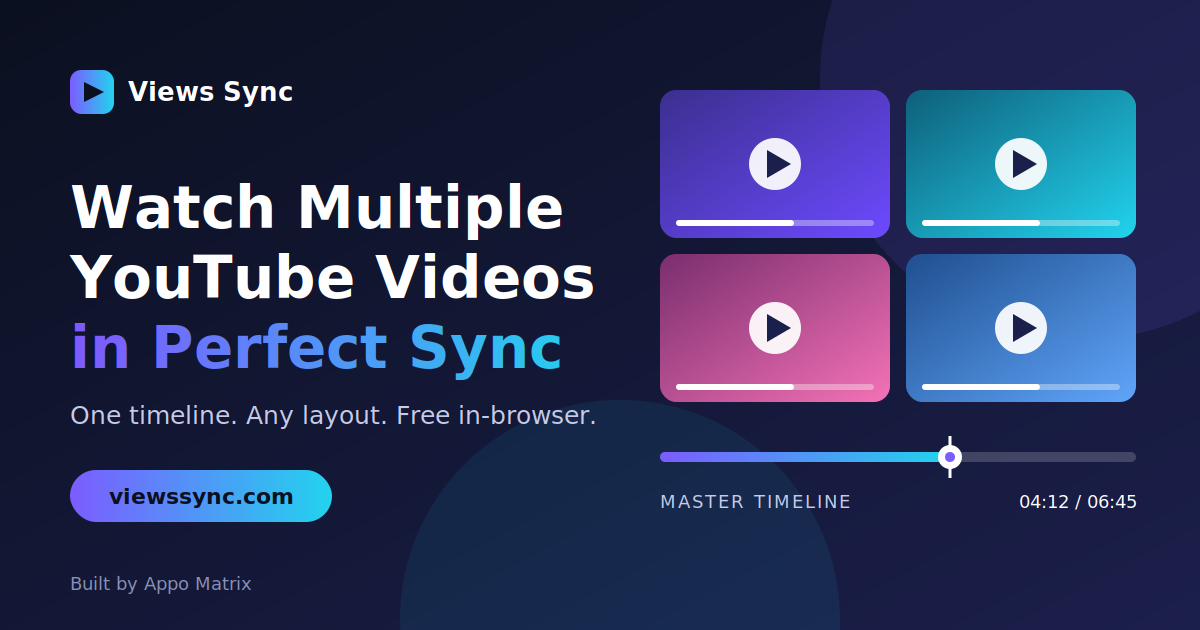
Multiple YouTube Viewer: Watch & Sync Videos Side by Side | Views Sync
You've probably done it before. You open one YouTube video in a tab, then another, then a third. You press play on the first, flip over and press play on the second, and realize they're about two seconds apart. So you pause, scrub, try again, and somewhere around attempt four you wonder why this is so hard.
Watching one video is easy. Watching several at the same time, in step with each other, is surprisingly awkward in a normal browser.
That's the problem Views Sync was built to solve. It's a free, browser-based multiple YouTube viewer that lets you paste in your links, choose a layout and control everything from one master timeline. In this guide, we'll explain what it does, who it's for, how to use it and how to get the most out of it.
What Is Views Sync?
Views Sync is a multi-view tool for YouTube. You add videos, they appear together on one screen, and they stay locked to a shared "master clock," so play, pause and seeking happen together instead of one tab at a time.
A few things set it apart:
It runs in your browser. There's nothing to download or install.
It's free and fast. You can open it and start straight away.
It uses the official YouTube players. Each player stays fully interactive with the usual YouTube controls.
It's built for real creative work. Reaction edits, multicam comparisons and side-by-side reviews are exactly what it's designed for.
You can try it at viewssync.com, or jump straight into the sync workspace.
Who Is It For?
Anyone who regularly needs to see more than one video at the same time. In particular:
Reaction creators
Reaction content depends on timing. When you're lining up your response against the original clip, being a half-second off changes the whole feel. A shared timeline helps you review both together.
Video editors
Editors often compare different cuts, versions or takes. Seeing them side by side, in sync, makes it much easier to spot differences in pacing, framing and sound.
Multicam and event viewers
When the same live event or performance is filmed from several angles by different channels, you can line the feeds up and follow the action from every perspective at once.
Analysts, reviewers and researchers
If you're comparing how several videos treat the same moment, a split view saves a lot of tab-flipping and note-taking.
Learners and curious viewers
Comparing tutorials, watching different explanations of the same idea, or following a lecture alongside a demo are all easier when everything is on one screen.
What You Can Do With Views Sync
Add videos in whatever format you have
Paste your links and Views Sync handles the rest. It supports standard watch links, youtu.be short links, YouTube Shorts and raw video IDs, so you don't need to clean up a URL before using it.
Spawn multiple copies of the same video
This is one of the most interesting features. You can choose how many synced players to create from a single URL. For example, you could open four copies of the same clip, each with a different offset.
That's useful when you want to compare several moments from one video at the same time, such as before and after, setup and result, or the same scene at different points in a performance.
Pick the layout that fits the job
Different tasks need different arrangements. Views Sync offers several layouts:
Layout
Good for
Grid
Watching several videos equally, such as multicam or multiple tutorials.
1+N
Keeping one main video large with others alongside as references.
Side
A straightforward side-by-side comparison of two videos.
PiP
A picture-in-picture view with a small video over a main one, handy for reactions.
Shorts
A layout suited to vertical YouTube Shorts.
Drag tiles to reorder
Not happy with the arrangement? Drag the tiles to reorder them. It's a small thing, but it makes it easy to put your main video where you want it.
Control everything from one master clock
The core idea behind Views Sync is a single timeline. Instead of managing each player by hand, you use the master clock to keep every feed together. That's what turns a messy pile of tabs into one smooth workspace.
How to Watch Multiple YouTube Videos at Once: Step by Step
Getting started takes about a minute.
Step 1: Open Views Sync. Go to viewssync.com and launch the sync workspace.
Step 2: Paste your YouTube links. Add the videos you want to watch. You can use watch links, youtu.be links, Shorts links or plain video IDs.
Step 3: Decide how many players you need. If you want multiple copies of the same video, choose how many to create from that URL.
Step 4: Choose a layout. Pick Grid, 1+N, Side, PiP or Shorts depending on what you're doing.
Step 5: Arrange your tiles. Drag the players into the order that makes sense for you.
Step 6: Press play. Use the master timeline to play, pause and move through your videos together.
Practical Ways to Use It
Here are a few ideas to show how flexible a multiple YouTube viewer can be.
Comparing two edits of the same video. Put the original and the revised version side by side. Watch for changes in timing, cuts and audio.
Planning a reaction video. Use a PiP or 1+N layout to keep the original clip visible while you plan where your reactions land.
Following a multicam event. Load the different camera feeds into a grid and follow whichever angle is most interesting.
Studying a technique. Compare how different instructors teach the same skill, such as a cooking method, a guitar passage or a code walkthrough, and notice what each one emphasizes.
Reviewing the same scene at different moments. Spawn several copies of a single video with different offsets to examine how a scene develops.
Comparing versions of a song or performance. Line up several performances of the same piece and listen for the differences.
Tips for Getting the Best Results
Start with fewer videos. Two or three is easy to follow. Add more once you're comfortable.
Match the layout to the task. Side for direct comparison, Grid for equal attention, 1+N when one video is the star.
Use offsets on purpose. If two clips don't start at the same moment, adjust them so the point you care about lines up.
Use a large screen if you can. More space makes it easier to follow several videos at once.
Keep headphones handy. With several videos playing, you'll usually want to focus on one audio track at a time.
Check your connection. Several videos at once means more data, so a stable connection helps keep playback smooth.
Why a Browser-Based Tool Makes Sense
There are desktop programs that can display multiple video sources, but they often mean downloads, setup and learning curves. For quick comparison and review work, that's more effort than it should be.
A browser-based tool removes most of that friction:
No installation or updates to manage.
Works on the device you're already using.
Uses YouTube's own players, so videos play the way you expect.
You can start, stop and come back whenever you like.
The less time you spend setting up, the more time you spend actually watching and creating.
Questions We Hear a Lot
Is Views Sync really free?
Yes. Views Sync is described as free, fast and browser-based.
Do I need to create an account or install anything?
You can open Views Sync in your browser and start adding videos. There's nothing to install.
What kinds of YouTube links work?
Standard watch links, youtu.be links, YouTube Shorts links and raw video IDs.
Can I watch the same video more than once at the same time?
Yes. You can spawn multiple synced players from one URL, each with a different offset, which is handy for comparing different moments in the same video.
Can I change the layout?
Yes. You can choose from Grid, 1+N, Side, PiP and Shorts layouts, and drag tiles to reorder them.
Are the videos still using YouTube's own controls?
Yes. Each player stays fully interactive with the official YouTube controls.
Who built Views Sync?
Views Sync was built by the team at Appo Matrix, a software company based in Gilgit-Baltistan that creates web platforms, mobile apps and SaaS products for businesses around the world.
Try It Yourself
If you've ever fought with a stack of browser tabs just to compare a few videos, Views Sync was built for you. Paste your links, pick a layout and let the master timeline do the work.
Launch Views Sync and watch multiple YouTube videos in sync
You can also explore the features, browse the guides or check the FAQ on the Views Sync website.
About Appo Matrix
Appo Matrix builds custom web applications, mobile apps and SaaS products. Views Sync is one example of how we turn an everyday frustration into a simple, useful tool. If you have an idea for a product of your own, get in touch and let's talk about it.
Appo Matrix | Software Solutions & Digital Product Development
Building digital products, web platforms, mobile applications and SaaS solutions from Gilgit-Baltistan for businesses worldwide.